> ## Documentation Index
> Fetch the complete documentation index at: https://docs.learnpack.co/llms.txt
> Use this file to discover all available pages before exploring further.

# Adding diagrams to your LearnPack course

> Generate and insert context-aware diagrams with LeranPacks's AI Assistent Rigobot to clarify complex steps, fully in the browser, no extra tools required.

Diagrams turn abstract instructions into clear, visual knowledge. Inside **LearnPack**, you can generate or insert diagrams directly into lessons so learners see how steps connect instead of reading them in isolation. This makes courses easier to follow and boosts engagement.

<Callout type="info">
  <b><span style={{color:"#4F46E5"}}>Browser-only:</span></b> everything happens inside LearnPack. No design software, no installs. Use <b>Rigobot</b> 🤖 to generate visuals that match your content.
</Callout>

## How to insert or generate a diagram

<Steps>
  <Step title="Select content ✍️">
    Highlight the section you want visualized.
  </Step>

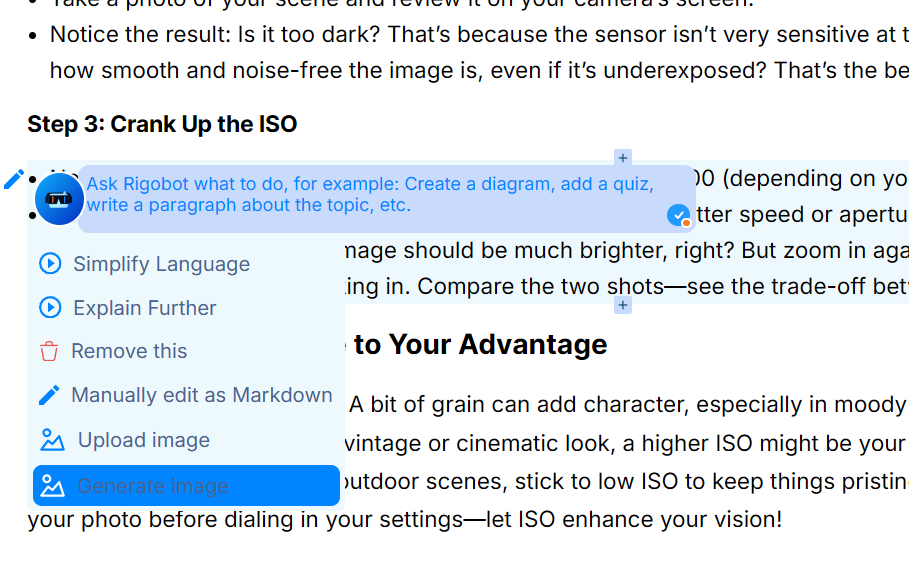
  <Step title="Open Rigobot’s menu 🤖">
    Choose <b>Generate image</b>.
  </Step>

  <Step title="Describe the diagram 💬">
    Type a simple instruction. Rigobot understands natural language, no prompt engineering needed.
  </Step>

  <Step title="Publish instantly 🚀">
    The diagram is added to your course and ready for learners.
  </Step>
</Steps>

## 📸 Example: turning steps into a diagram

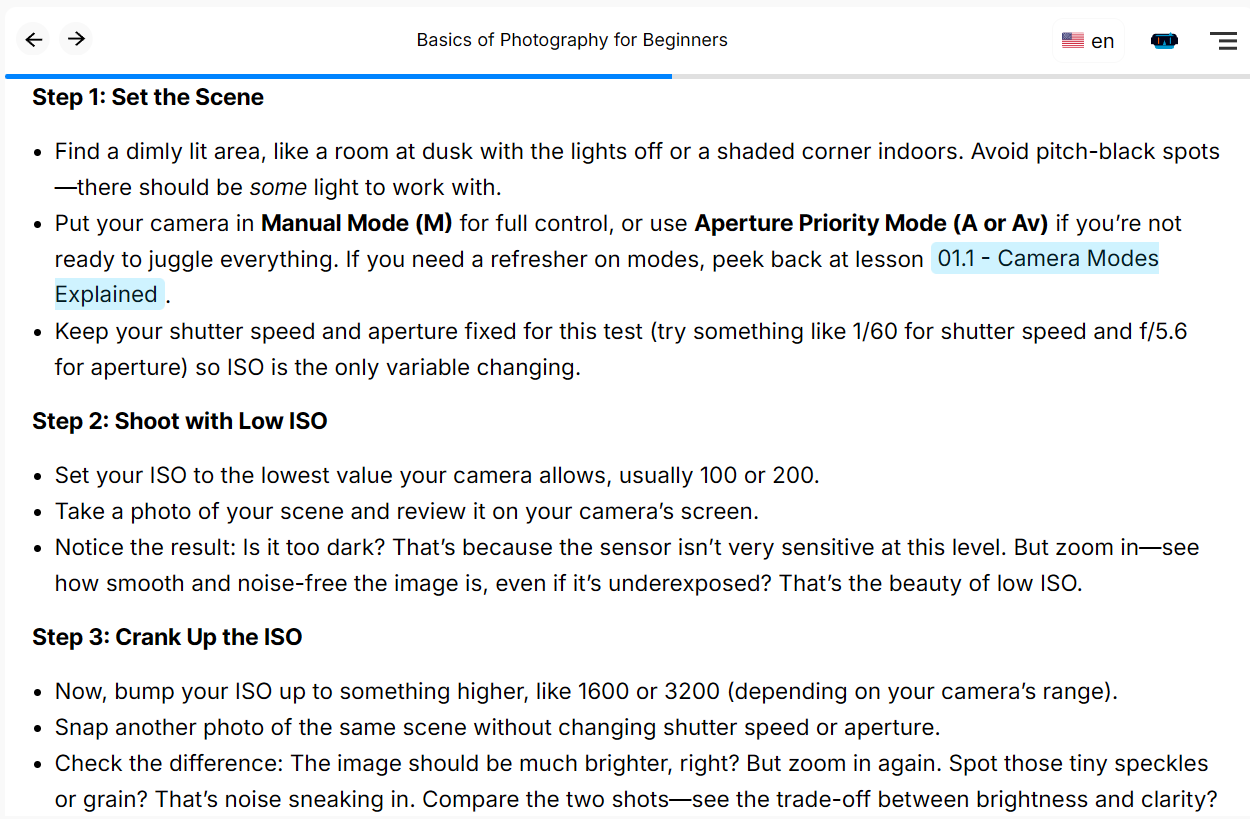
Imagine you wrote three steps for a photography lesson:

* **Step 1:** Set the Scene
* **Step 2:** Shoot with Low ISO
* **Step 3:** Crank Up the ISO

<img src="https://mintcdn.com/learnpack/PV-8S9Q955LnO8b7/images/diagrams.png?fit=max&auto=format&n=PV-8S9Q955LnO8b7&q=85&s=5fc36d66f1cd029ee35123c13d5aaa85" alt="Lesson steps screenshot" width="1250" height="819" data-path="images/diagrams.png" />

<Callout type="tip">
  From the learner’s point of view, diagrams remove heavy text. Instead of scrolling through bullets, they see how ideas connect at a glance. This is where LearnPack’s integrated <b>Rigobot</b> tutor makes a difference. 👍
</Callout>

To convert the steps into a diagram, you could ask Rigobot:

> Create a flow diagram that shows Step 1 → Step 2 → Step 3 for better understanding.

<img src="https://mintcdn.com/learnpack/PV-8S9Q955LnO8b7/images/diagram2.png?fit=max&auto=format&n=PV-8S9Q955LnO8b7&q=85&s=7b879ba48dcea242cbbf899bc75d2535" alt="Rigobot prompt example" width="909" height="565" data-path="images/diagram2.png" />

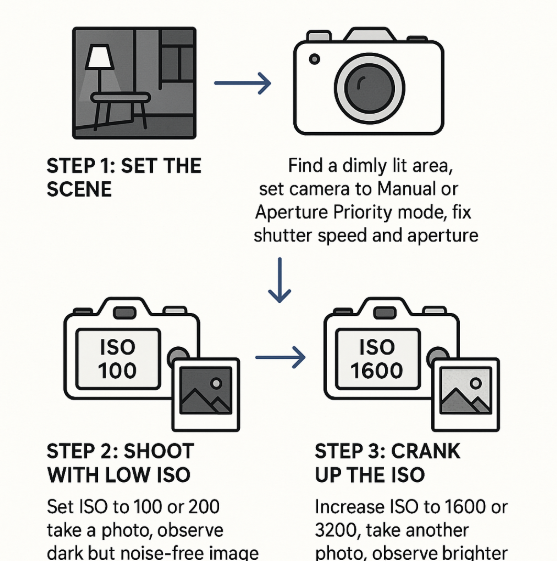
Rigobot will then generate a diagram representing the sequence, which learners can study visually alongside your text.

**Result:**
<img src="https://mintcdn.com/learnpack/PV-8S9Q955LnO8b7/images/diagram3.png?fit=max&auto=format&n=PV-8S9Q955LnO8b7&q=85&s=57a4911dca97531ab6b6f0a71cc98baa" alt="Generated flow diagram" width="557" height="576" data-path="images/diagram3.png" />

## 🤖 The Rigobot difference

Most AI assistants give generic answers. <a href="https://4geeksacademy.com/us/ai-powered-learning/rigobot-ai-coding-mentor" target="_blank" rel="noreferrer">Rigobot is different</a>: it knows your **course content**, tracks each learner’s **progress**, and adapts in real time. It remembers past interactions, explains diagrams in context, and uses the Socratic method to guide problem-solving instead of handing out shortcuts.

With <a href="https://learnpack.co/" target="_blank" rel="noreferrer">LearnPack</a>, diagrams become **active learning tools** supported by AI tutoring, interactive assessments, and real-time insights.

<Callout type="success">
  <b>Outcome:</b> clearer explanations, higher engagement, and faster comprehension, especially when paired with quick checks and projects. ✅
</Callout>

## ➡️ Next up

<Columns cols={2}>
  <div>
    <Card title="Create from existing material" href="/creating-courses/converting-a-pdf-into-an-interactive-course" icon="file-pdf">
      Start from PDFs, slides, or video transcripts.
    </Card>

    <Card title="Create from scratch (AI-assisted)" href="/creating-courses/adding-quizzes-projects-and-open-ended-tasks" icon="sparkles">
      Use AI to scaffold lessons, quizzes, and visuals.
    </Card>
  </div>

  <div>
    <Card title="Rigobot (AI tutor)" href="/rigobot/how-rigobot-works" icon="robot">
      See how the built-in tutor works in-context.
    </Card>

    <Card title="Publish a LearnPack package" href="/publishing-and-exports/how-to-publish-a-learnpack-package" icon="box-open">
      Share links, export SCORM, or embed in your LMS.
    </Card>
  </div>
</Columns>

## 🔗 See also

* [Adding images to your courses and packages](/creating-courses/adding-images-to-your-courses-and-packages)
* [Best practices for course design](/creating-courses/best-practices-for-course-design)
* [Contextual guidance and Socratic learning](/rigobot/contextual-guidance-and-socratic-learning)
